I spend most of my day in the terminal, jumping between projects, searching files, managing windows, and pasting snippets across apps. macOS Spotlight never kept up. I needed something faster, smarter, and extensible.
Raycast replaced Spotlight on my Mac over a year ago. Since then it’s also replaced my clipboard manager, window manager, snippet expander, and emoji picker. This is my honest Raycast review after using it daily as a developer.
What Is Raycast for Mac?
Raycast is a keyboard-driven Mac launcher for macOS. You press a hotkey (default Option+Space), type what you want, and it happens. Launch apps, search files, run scripts, manage windows, access AI — all from one command bar.
Think of it as Spotlight on steroids, but actually designed for developers and power users.
The company was founded by Thomas Paul Mann and Petr Nikolaev, is based in London and has raised $47.8M in funding. It’s not a side project — this is a well-funded, actively developed product with a fast release cadence.
The Free Tier Is Genuinely Generous
Before I talk about what Raycast can do, let me be upfront: the free tier isn’t a demo. You get real, daily-driver features for $0:
- Application launcher with fuzzy search that learns your habits
- Clipboard history (3 months) — encrypted, stored locally, auto-excludes passwords
- Window management with keyboard-driven preset layouts
- Snippets with dynamic placeholders (date, time, clipboard content)
- Calculator with unit conversions right in the command bar
- Emoji picker, system commands, dictionary
- 2,000+ extensions from the community store
- 50 AI messages/month across models like GPT-4o mini, Claude 4.5 Haiku, and Gemini Flash
I used the free tier for months before going Pro. It replaced three paid apps on day one.
Core Features That I Actually Use Daily
Clipboard History
This is the feature I didn’t know I needed until I had it. Every piece of text, image, link, and color you copy is tracked and searchable. I press Cmd+Shift+V, search for something I copied two days ago, and paste it. Done.
Sensitive data like passwords from managers is automatically excluded. Everything’s encrypted locally — nothing leaves your machine.
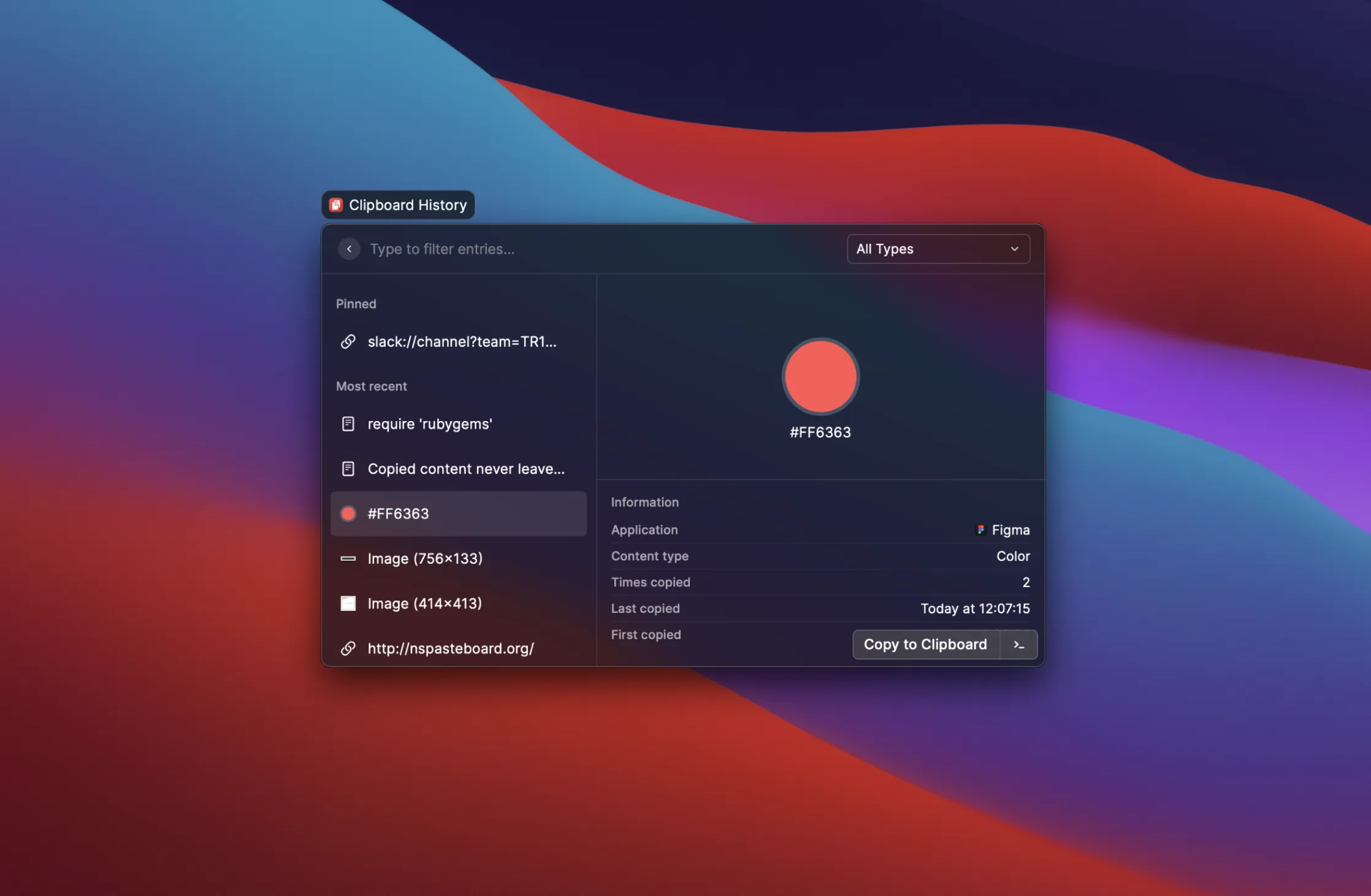
The caveat: There’s a known limitation with very large text blocks (1,000+ lines). If you regularly copy massive log outputs, you might hit a silent truncation. For normal development work, I’ve never run into this.
Window Management
I threw away Rectangle the day I installed Raycast. A quick command gives me preset layouts — “Coding Layout” puts my editor on the left, terminal bottom-right, browser top-right. All from the keyboard.
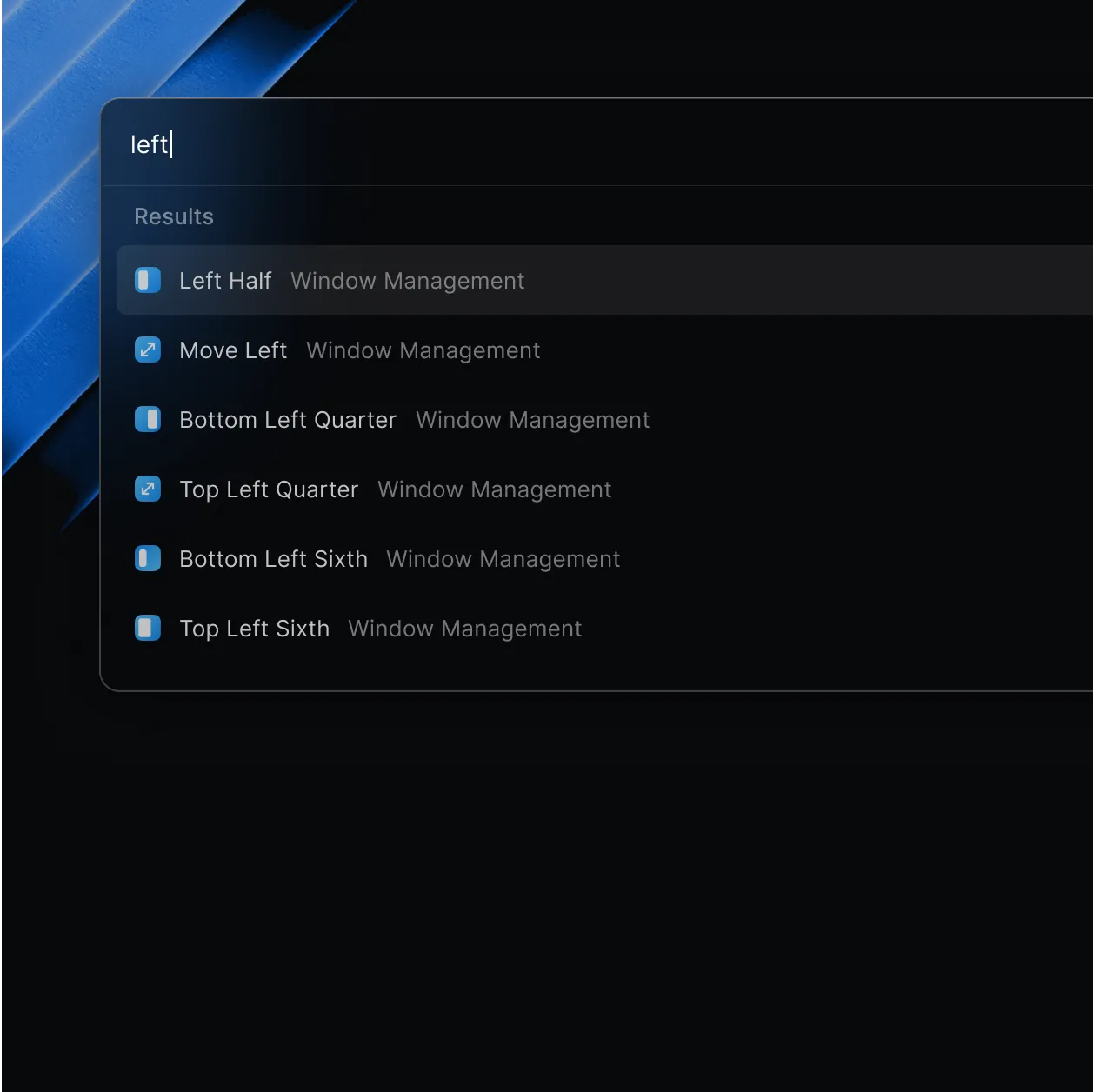
Pro users can create custom layouts, but the built-in presets cover 90% of what most developers need.
Snippets
I have snippets for everything: email templates, code boilerplate, common terminal commands, meeting notes structure. Type a keyword and it expands inline in any app.
Dynamic placeholders are useful — {date} inserts today’s date, {clipboard} inserts your current clipboard content. It replaced TextExpander for me.
Quicklinks
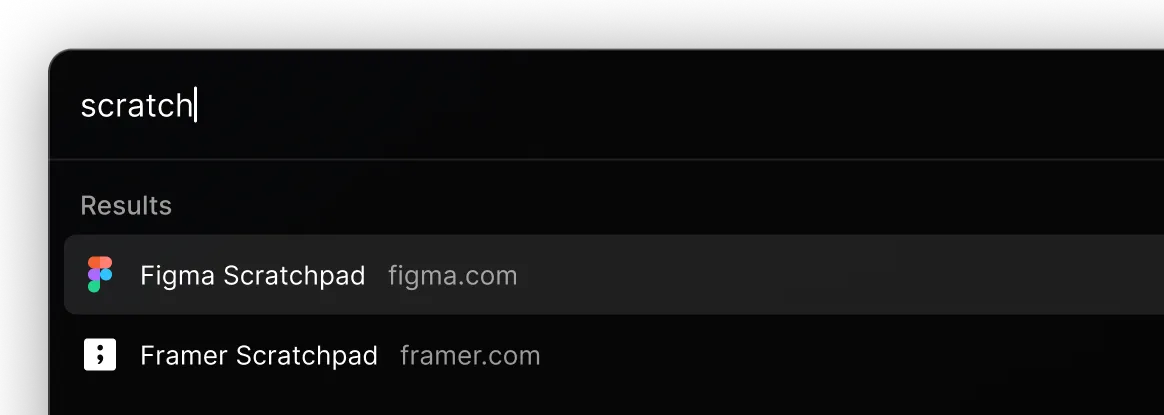
These are underrated. I have shortcuts like:
gh {query}→ searches my GitHub reposnpm {query}→ searches npm packagesjira {query}→ searches our Jira board
Type two characters and a search term, and you’re there. No browser required.
File Search
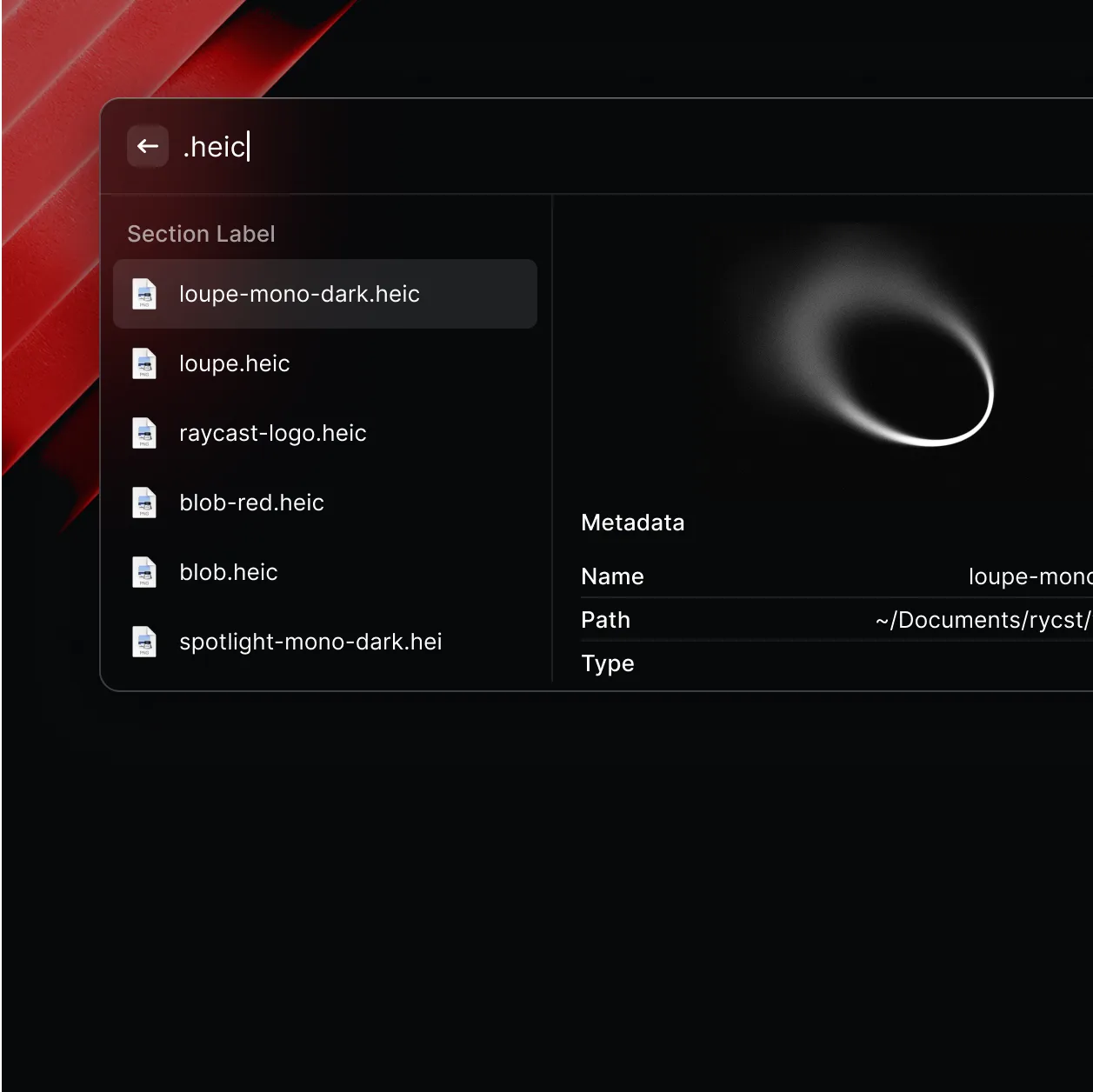
File search works well for everyday use. It finds apps, documents, and folders quickly. I’ll be honest though — if you’re coming from Alfred, you might notice that Alfred’s file indexing is faster and more accurate for deep file system searches. For my workflow, Raycast’s file search is more than sufficient, but this is a fair criticism.
The AI Features Are a Genuine Differentiator
This is where Raycast pulled ahead of every other Mac launcher in 2025. The AI integration isn’t a gimmick — it’s deeply embedded into the workflow.
Quick AI
Press a hotkey and get a floating AI window without leaving your current app. I use it constantly:
- Explain a code snippet I just copied
- Rewrite an error message into a clear Slack update
- Translate a message from a colleague
- Summarize a long document
It supports inline web search with references, so answers are grounded in current information.
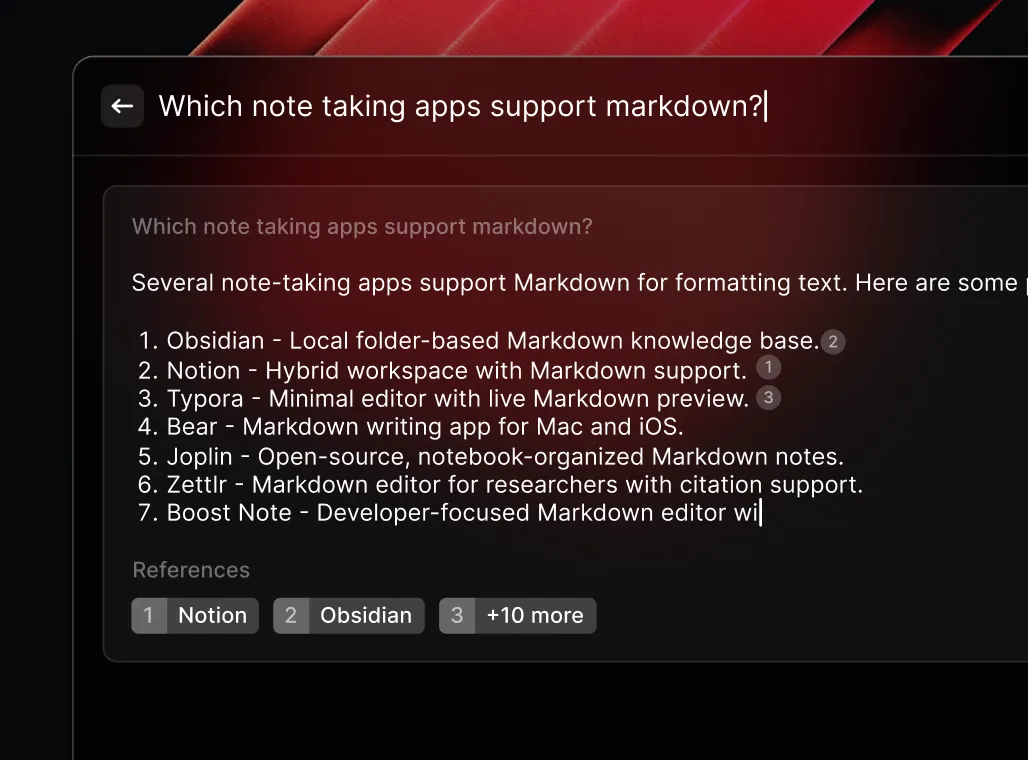
AI Chat
A full conversational interface supporting 32+ models from OpenAI, Anthropic, Google, Meta, Mistral, DeepSeek, xAI, and more. You can attach PDFs, CSVs, images, and even on-screen content for context.
The model selection is impressive:
| Provider | Notable Models |
|---|---|
| OpenAI | GPT-4o, GPT-4.1, GPT-5, o3, o4 |
| Anthropic | Claude 4.5 Haiku, Claude Opus |
| Gemini 2.5 Flash, Gemini 3 | |
| Meta | Llama 4 Scout |
| Others | DeepSeek-V3, Grok, Mistral, Qwen |
Raycast recently added an Auto Model feature (v1.102) that picks the best model for each task automatically.
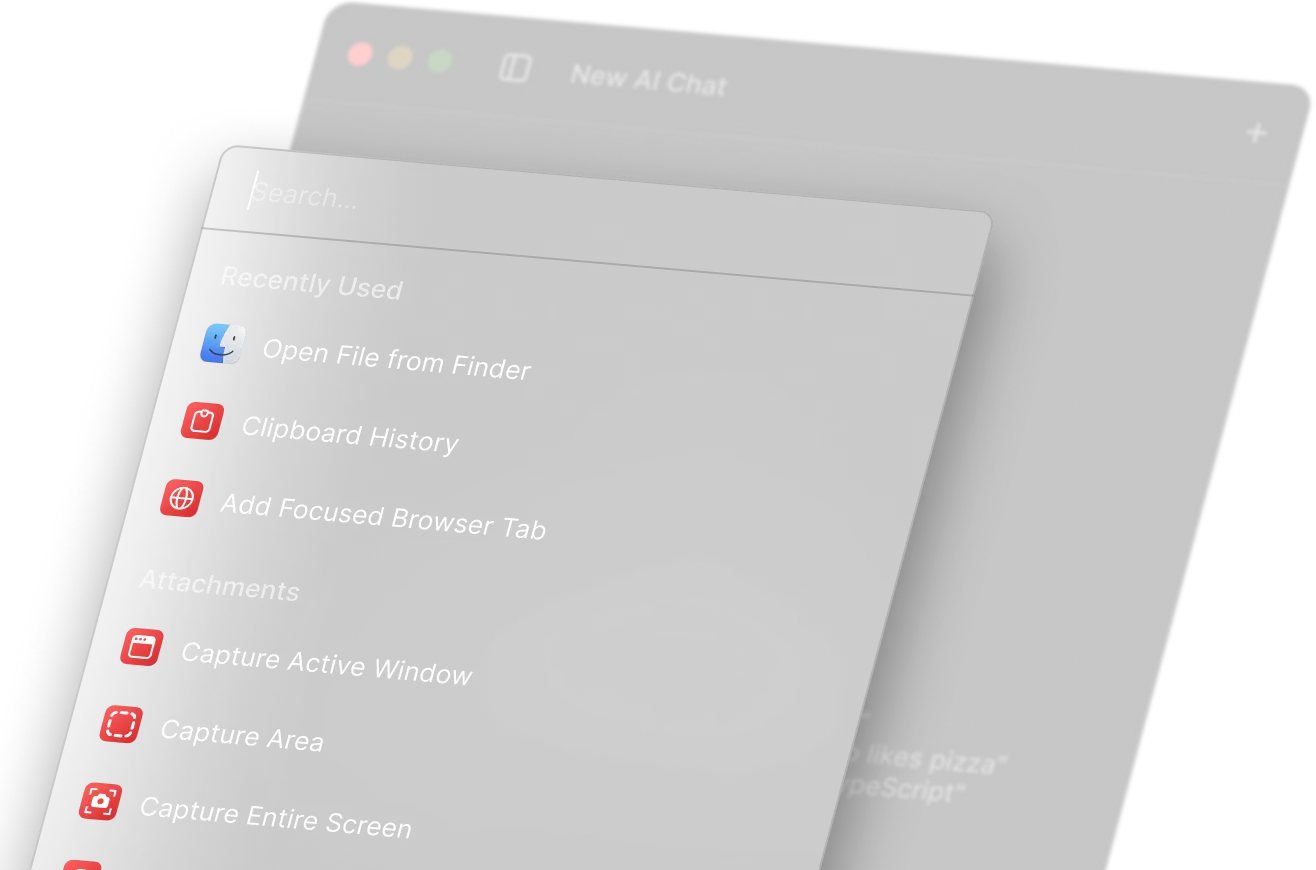
Bring Your Own Key (BYOK)
If you don’t want a Pro subscription but still want premium AI models, you can plug in your own API keys for Anthropic, OpenAI, Google, or OpenRouter. This is a smart move — it removes the paywall for users who already pay for API access elsewhere.
Local Models via Ollama
Since v1.99, Raycast integrates with Ollama to run 100+ open-source models locally. No cloud, no API keys, complete privacy. Great for sensitive codebases.
MCP (Model Context Protocol)
This is the feature that turned Raycast AI from a chatbot into an actual agent. MCP lets Raycast AI connect to external tools — GitHub, Notion, Google Drive, Brave Search — via @mention syntax. Ask it to “create a GitHub issue for this bug” and it actually does it.
The Extension Ecosystem
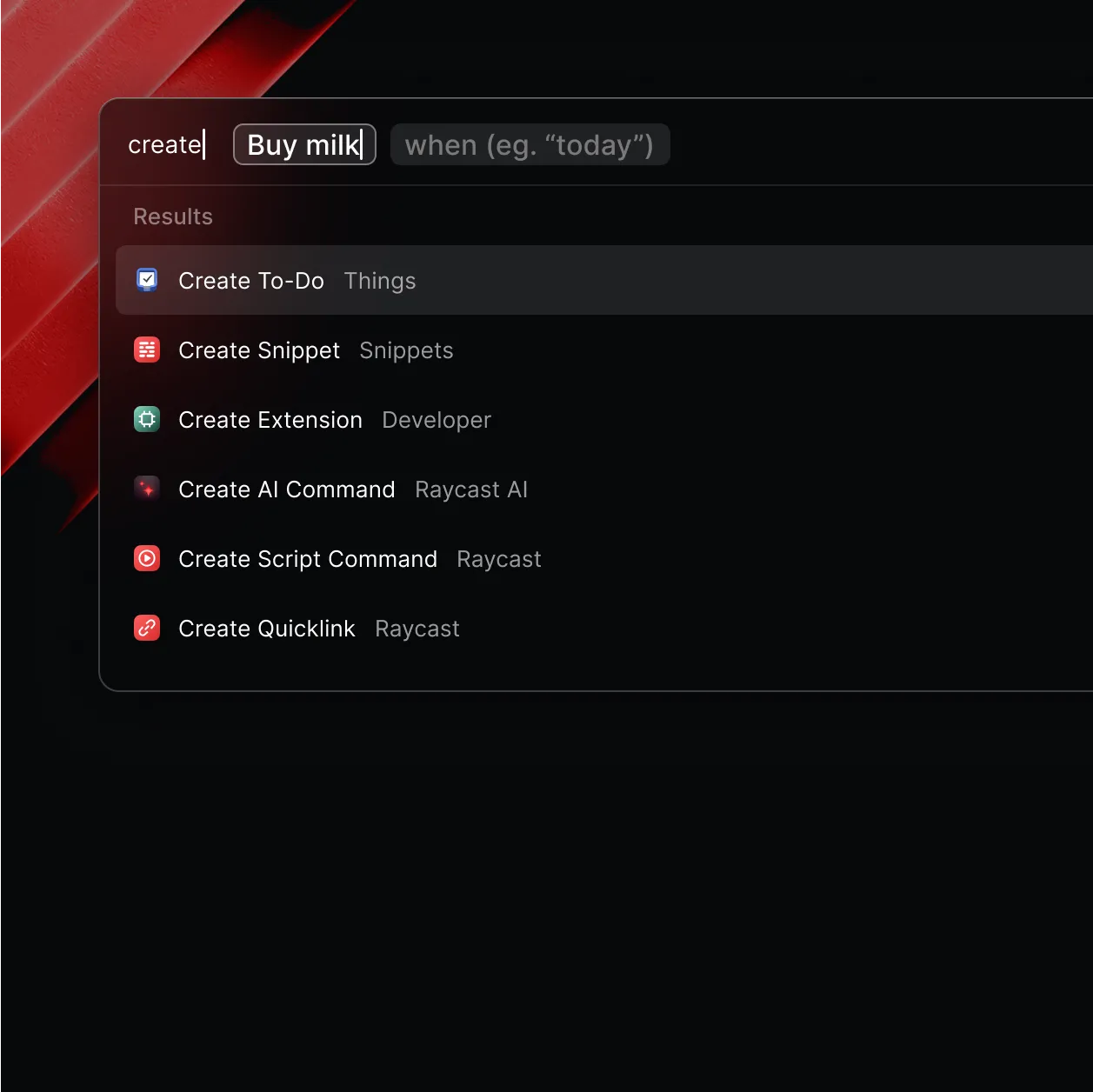
The Raycast Store has ~2,000 extensions, all open-source and built with React and TypeScript. Some I use daily:
- Kill Process (415K installs) — terminate hung processes by CPU/memory usage
- Visual Studio Code (236K installs) — open projects, search recent files
- Google Chrome (292K installs) — search tabs, bookmarks, history
- Slack (190K installs) — set status, search messages
- 1Password (143K installs) — search and autofill
- Docker — manage containers without opening Docker Desktop
If you’re a developer, you can build your own extensions using the Raycast API. It’s React and TypeScript — if you write frontend code, you already know the stack.
What Has Changed Recently (2025-2026)
Raycast shipped aggressively in 2025:
- iOS app launched (April 2025) — AI chat, notes, cross-device sync
- Windows public beta (November 2025) — no longer Mac-only
- MCP integration — AI connects to external tools
- Local models via Ollama — run AI privately
- BYOK and BYOM — bring your own API keys or custom model providers
- Auto Transcribe — meeting transcription powered by Granola
- Free AI tier — 50 messages/month for everyone
Thomas Paul Mann, Raycast’s CEO, said it well: “We began this year as a Mac-only app. We’re ending it with iOS and Windows… rethinking what a modern operating system for professionals looks like in the age of AI.”
Pricing: What You Actually Pay
| Plan | Price | Key Additions |
|---|---|---|
| Free | $0 | Everything above — launcher, clipboard (3mo), window management, snippets, 50 AI msgs/mo, extensions |
| Pro | $8/mo (annual) | Unlimited clipboard history, cloud sync, custom themes, more AI messages, translator |
| AI Add-on | +$8/mo | Premium AI models (GPT-5, Claude Opus, Gemini Pro) |
| Teams | $12/user/mo | Shared commands, AI control center, custom layouts |
My take on pricing: The free tier is enough for most developers to get real value. I went Pro mainly for unlimited clipboard history and cloud sync across my machines. The AI add-on is worth it if you use AI daily and want premium models — otherwise the free tier models are solid.
The Alfred comparison: Alfred charges a one-time ~£34 for its Powerpack. After a year of Raycast Pro, you’ll have paid more. If you don’t need AI or cloud sync, Alfred’s pricing model is objectively better. But if you factor in the AI features, the math works out — a ChatGPT Plus subscription alone costs $20/month.
Raycast vs Alfred vs Spotlight — Which Mac Launcher Wins?
vs. Spotlight (macOS Tahoe)
macOS Tahoe significantly improved Spotlight with clipboard history, quick keys, and intelligent grouping. For casual users, it’s now good enough. But it still lacks:
- Third-party extensions
- AI integration
- Advanced snippets with dynamic placeholders
- Script commands and automation
- Custom window management
If you’re reading a technical blog about productivity tools, Spotlight probably isn’t enough for you.
vs. Alfred
This is the real Raycast vs Alfred debate. After using both extensively:
Raycast wins on: Modern UI, more built-in features for free, extension ecosystem, AI integration, cross-platform (Windows and iOS), better onboarding.
Alfred wins on: Raw file search speed, keystroke efficiency (fewer steps for most actions), snippet expansion speed, one-time pricing, lighter resource usage (~50MB vs ~150MB).
My verdict: If you’re starting fresh and value a modern, all-in-one Mac launcher with AI built in — go with Raycast. If you’re a long-time Alfred user with complex workflows that work perfectly — Alfred is still excellent. But for new users, I recommend Raycast.
What Raycast Gets Wrong
My criticism:
File search isn’t best-in-class. Alfred’s indexing is faster and smarter. Raycast is good enough, but not the best.
Feature creep is a risk. Raycast now does notes, calendar, transcription, focus mode, and more. It risks becoming a “jack of all trades” if it isn’t careful. I want it to stay focused on being a great launcher.
Snippet expansion has noticeable lag. It’s slower than Alfred and native TextExpander. Not a dealbreaker, but you feel it.
Memory usage is higher than Alfred. ~120-180MB base vs Alfred’s minimal footprint. On a modern Mac with 16GB+ RAM this doesn’t matter, but it’s worth noting.
The subscription model isn’t for everyone. Some developers fundamentally prefer one-time purchases. That’s valid.
Who Should Use Raycast
Raycast is perfect for you if:
- You’re a developer or power user on macOS
- You want one tool to replace your launcher, clipboard manager, window manager, and snippet expander
- You want AI integrated into your workflow without switching apps
- You value a modern, well-designed UI with an active extension ecosystem
- You’re starting fresh and don’t have years of Alfred workflows to migrate
Raycast might not be for you if:
- You need the absolute fastest file search (Alfred wins here)
- You’re an Alfred power user with complex workflows that work perfectly
- You refuse to use subscription-based tools on principle
- You want a minimal, lightweight launcher with zero extras
As a developer focused on DevOps and cloud engineering, I’ve found Raycast fits perfectly into a terminal-heavy, multi-tool workflow.
Getting Started
- Download Raycast for free
- When prompted, replace Spotlight with Raycast (you can always revert)
- Set your hotkey — I use
Option+Space - Install a few extensions: Kill Process, your browser extension, and your code editor extension
- Start using clipboard history (
Cmd+Shift+V) — this alone will change your workflow - Explore AI with your 50 free messages
Within a week, you’ll wonder how you worked without it.
Final Verdict: Is Raycast Worth It in 2026?
Raycast is the best productivity launcher for macOS in 2026. The free tier is generous enough to be a daily driver, the AI integration is unmatched by any competitor, and the extension ecosystem keeps growing.
It’s not perfect — file search could be faster, snippets could be snappier, and the growing feature set risks bloat. But no other tool gives you this much power in a single, keyboard-driven interface.
I’ve been using it daily for over a year, I’ve pasted from clipboard history thousands of times, and it’s the first app I install on every new Mac.
Get Raycast here — the free tier is genuinely enough to start. Try it for a week. If it doesn’t improve your workflow, uninstall it and you’ve lost nothing.